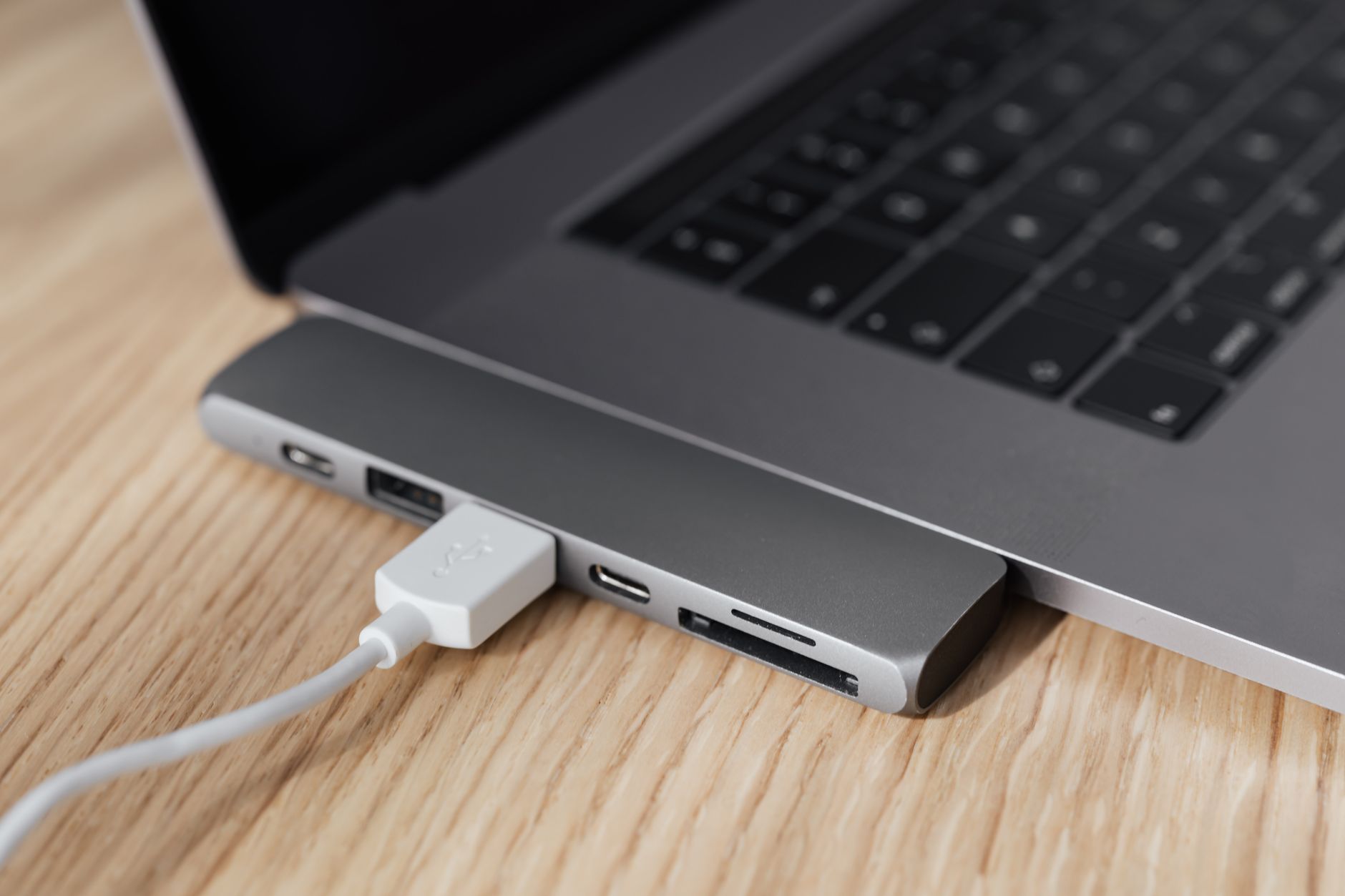
You want to walk up to the desk, plug in one cable, and have the monitor, the keyboard, the network, and the charging all come alive. That setup is real, but it depends on a chain of capabilities in your laptop's port — and when a dock disappoints, the weak link was usually chosen back when you bought the laptop, not when you bought the dock. This is the chain, in order, written as a checklist you can run before spending anything.
The verdict
Four things have to be true about your laptop's port, and one about the cable:
- The port carries video, not just data.
- The port accepts power in, not just power out.
- The dock supplies enough power for that specific laptop, under load rather than at idle.
- The port has bandwidth left for your displays and your peripherals at the same time.
- The cable is one rated for all of the above.
If any of the first four is false, one cable becomes two. That is not a failure of the dock; it is what the port was built to do. Check first, buy second.
The checklist
Does this port carry a display signal?
Where to find it. Laptop spec page, per port; icons beside the port
What it means if the answer is no. You need driver-based video, or a separate video cable
Does this port charge the laptop?
Where to find it. Spec page, or: does your factory charger plug into it?
What it means if the answer is no. Keep using the laptop's own charger alongside the dock
Does the dock's host power figure meet your charger's output?
Where to find it. Printed on your charger; listed on the dock as power to host
What it means if the answer is no. Slow charging, or battery drain during heavy work
Is it Thunderbolt or plain USB-C?
Where to find it. The bolt icon; the spec page
What it means if the answer is no. Multi-display and high-refresh setups may not fit
Is the cable the one rated for the dock?
Where to find it. Markings on the cable; the box it came in
What it means if the answer is no. Video or charging can drop out intermittently
1. The port has to carry a picture
USB-C is a connector shape. It says nothing on its own about what travels through it. Video over that shape usually arrives via DisplayPort Alt Mode — a mode where the port reassigns some of its wiring to carry a display signal instead of data. A port without that mode can move files and charge a phone and still refuse to drive a monitor.
Two traps here. First, laptops can ship with several USB-C ports whose capabilities differ; the one on the left may do video while the one on the right does not. Check the port, not the laptop. Second, a dock cannot add a display path to a port that has none. What it can do instead is DisplayLink — video rendered by a driver on your machine and shipped out as ordinary USB data. That works, and it is a genuine option for older machines, but it needs software installed and it uses your CPU to do a job the graphics chip would otherwise do.
2. The port has to take a charge, not just give one
Charging over USB-C runs on USB Power Delivery (PD), a negotiation where the charger and the device agree on how much power to move and in which direction. A port can support data and video and still not accept power in.
The fastest test needs no spec sheet: plug your laptop's factory charger into that port. If the laptop charges, the port takes power. If it does not, the dock will not charge it either, and your one-cable desk has a second cable in it.
3. The power has to be enough for your laptop
Two figures decide this, and both are printed on hardware you already own or are about to buy. Your laptop's own charger states its output. The dock states how much it delivers to the host machine. Compare those two.
When the dock's figure is the lower one, the laptop may charge slowly, hold roughly steady, or slide down during sustained heavy work while topping back up when you stop. That is arithmetic, not a defect. It may be perfectly acceptable for writing and calls, and frustrating during a long compile or a video export.
One detail worth reading closely: docks often advertise a total power budget shared across every port. The number you care about is the one delivered to the laptop. If the listing only gives a total, treat the host figure as unknown and ask before buying.
4. Display and data compete for the same pipe
The link between laptop and dock has a fixed capacity, and the display claims its share first. Higher resolution, higher refresh rate, and a second monitor each enlarge that share, and what remains is what your drives, dock ethernet, and USB devices divide between them.
The symptom is rarely a clean failure. It looks like an external SSD that got slow after you added the second monitor, or a display that refuses the refresh rate it managed yesterday, or two monitors that will only mirror. If you plan to run more than one display, treat the port's bandwidth as the constraint that decides the whole setup, and confirm the specific display configuration you want is supported — by the laptop, then by the dock.
Thunderbolt ports fold USB-C, DisplayPort, and PCIe onto one connector and carry a higher ceiling than plain USB-C, which is why multi-monitor and external-GPU setups tend to be specified against them. The bolt icon beside the port is the quick tell; the spec page is the confirmation.
5. The cable is part of the spec
Same plug, different insides. Cables vary in the data rates and power levels they are built and certified for, and a cable that charges a phone reliably can misbehave when asked to carry a display signal and laptop-level power at once. Use the cable the dock shipped with, keep it tethered to the desk, and keep your travel cable separate so the two do not get swapped.
The step that was decided months earlier
Every check above is a property of the laptop. A dock is downstream of all of them. That is why so many disappointing dock purchases are unfixable at the dock end: the port already had a ceiling, and the dock just made it visible. If you are shopping for a laptop now and a one-cable desk is part of the plan, the port section of the spec sheet deserves as much attention as the CPU.
Who should skip this
- You use a desktop. None of this applies; a monitor cable and a USB hub are the whole setup.
- One monitor, few peripherals, laptop lives at the desk. An HDMI cable and your existing charger is two cables, no drivers, and less to go wrong. A dock buys you convenience you may not need.
- You unplug once a week, not four times a day. The value of a dock scales with how often you connect and disconnect. If it is rare, the savings are small.
- Your work is GPU-bound. External graphics and high-refresh multi-display setups have their own requirements. Use this checklist to rule things out, then verify the specific configuration against both vendors.
The one thing to do next
Open your laptop's official spec page, find the port section, and write down three answers: whether the port carries DisplayPort, whether it accepts charging, and what output is printed on your factory charger. With those three facts in hand, dock listings become easy to read — and most of the bad purchases rule themselves out before you reach checkout.